
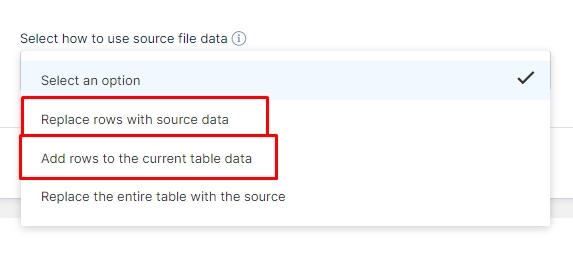
If you are updating an existing Manual Table and trying to add new rows (using “Replace rows with source data” or “Add rows to the current table data”), you may see an error such as:
“The number of columns in your file does not match the number of columns in the existing table”
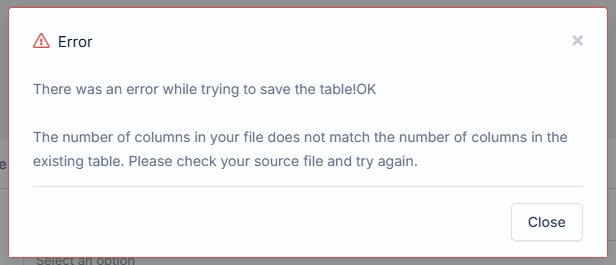
In most cases, this happens because your CSV/Excel or Google Sheet file includes system-generated columns that should not be imported.
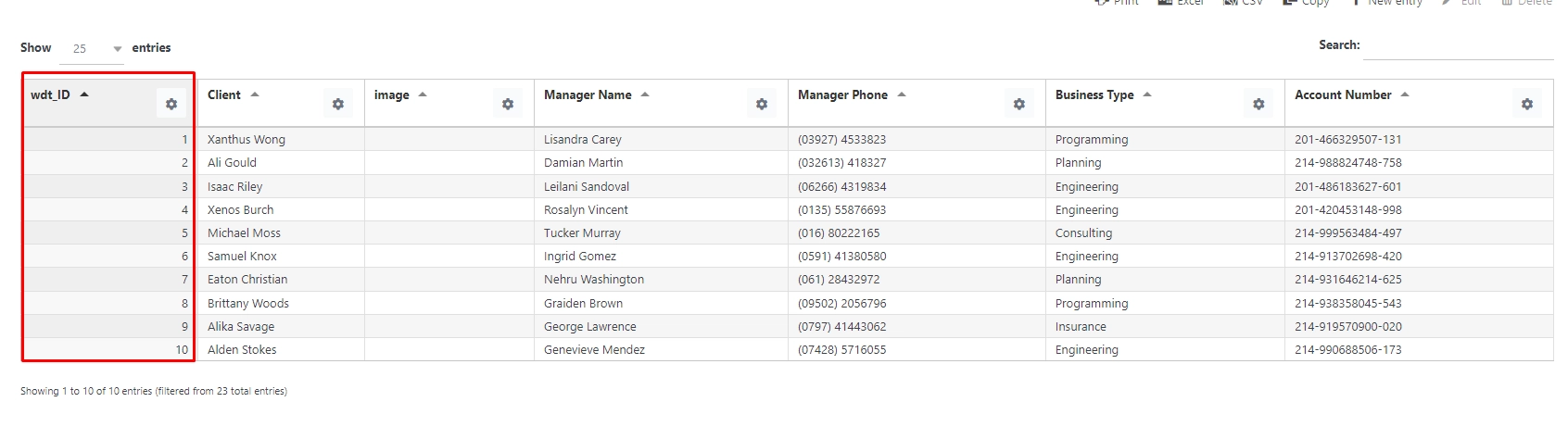
✅ What to Check
Please open your source CSV/Excel or Google Sheet file and make sure it does NOT include any of these columns:
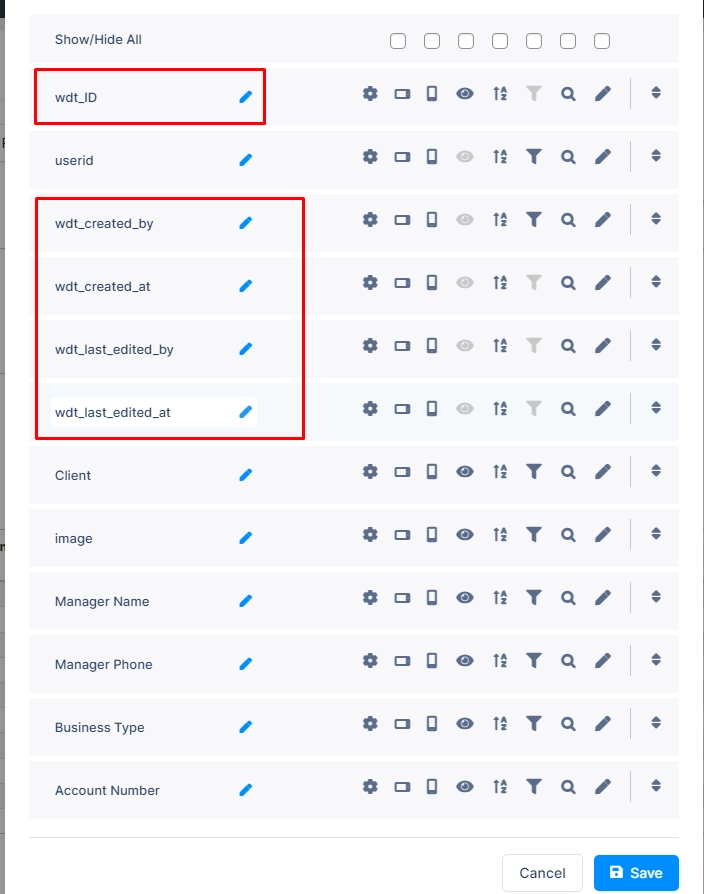
wdt_IDwdt_created_bywdt_created_atwdt_last_edited_bywdt_last_edited_at
These are automatic system columns created by wpDataTables for Manual tables.
🔎 Why This Causes the Error
These columns:
Are generated automatically by the plugin
Are auto-filled with:
A unique ID (
wdt_ID)The user who uploaded/edited the file
The date and time of creation or last edit
If you include them in your CSV/Excel or Google Sheet file, the structure will no longer match the existing Manual table — which results in the column mismatch error.
✔ The Correct Way to Import
When updating a Manual table:
Include only your custom columns (for example: Client, Manager Name, Business Type, etc.)
Exclude all
wdt_system columnsMake sure the number and order of columns match your existing table structure
After removing the system columns from your source file, the import should work without errors.
If the issue persists after checking this, feel free to contact our Support.